
In today’s digital landscape, establishing a robust online presence is crucial for businesses of all sizes. One of the most effective tools for this is Google My Business (GMB), a free tool that allows businesses to manage their online presence across Google, including Search and Maps. But how can a Google My Business location be verified to ensure that potential customers can find you easily? In this comprehensive guide, we will explore the significance of GMB, walk you through the steps to create and verify your business profile, and address common issues that may arise during the verification process. Join us as we master Google My Business and unlock the potential of an optimized online presence.
Key Takeaways
- Google My Business is crucial for improving local search visibility.
- Creating a comprehensive profile sets the foundation for effective verification.
- Verifying your business location is essential to establish trust and legitimacy.
- Be prepared for common verification challenges and know how to address them.
- Regular updates and engagement on your Google My Business profile enhance your online presence.
Understanding Google My Business and Its Importance
Google My Business (GMB) has emerged as an indispensable tool for businesses of all sizes, especially in enhancing local visibility online. Understanding how a Google My Business location can be verified is crucial because this verification process helps establish the legitimacy of your business, making it more likely to appear in local search results and on Google Maps. When potential customers search for services or products in their vicinity, a verified GMB listing not only increases your chances of being found but also instills trust in your brand. Verified businesses can showcase important information such as address, contact details, hours of operation, and even customer reviews, which can significantly influence a customer’s decision to choose you over a competitor. To initiate verification, businesses can use various methods, including receiving a verification postcard by mail, phone verification, or email. Each method has its unique steps, but the end goal remains the same: to authenticate that your business exists at the specified location, enabling you to leverage the full potential of Google My Business for improved online visibility and customer engagement.
Step 1: Creating Your Google My Business Profile
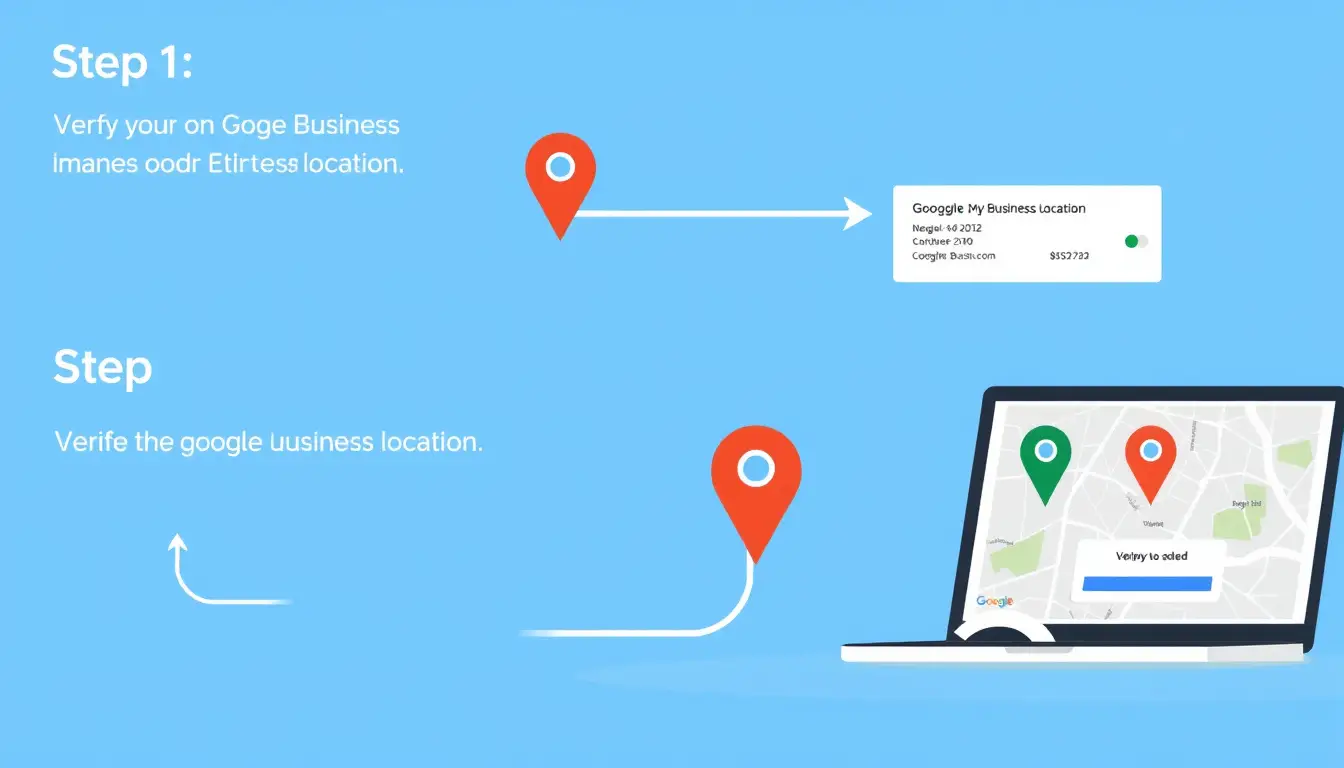
Creating your Google My Business profile is the essential first step in establishing a strong online presence for your business. This profile not only allows potential customers to find your business information but also enhances your visibility in local search results. To initiate the verification process for your location, you’ll need to provide accurate information about your business, including your business name, address, and phone number (NAP). Once you’ve completed your profile, Google will prompt you on how to verify your location. Common methods for verification include receiving a verification postcard at your business address, phone verification, or email verification, depending on your business’s eligibility. Understanding how can a Google My Business location can be verified is crucial, as a verified profile boosts credibility, helps customers engage with your business, and improves your search ranking. Make sure to follow the verification steps promptly to enjoy the benefits of being an official Google My Business listing.
‘The best way to predict the future is to create it.’ – Peter Drucker

Step 2: Verifying Your Business Location
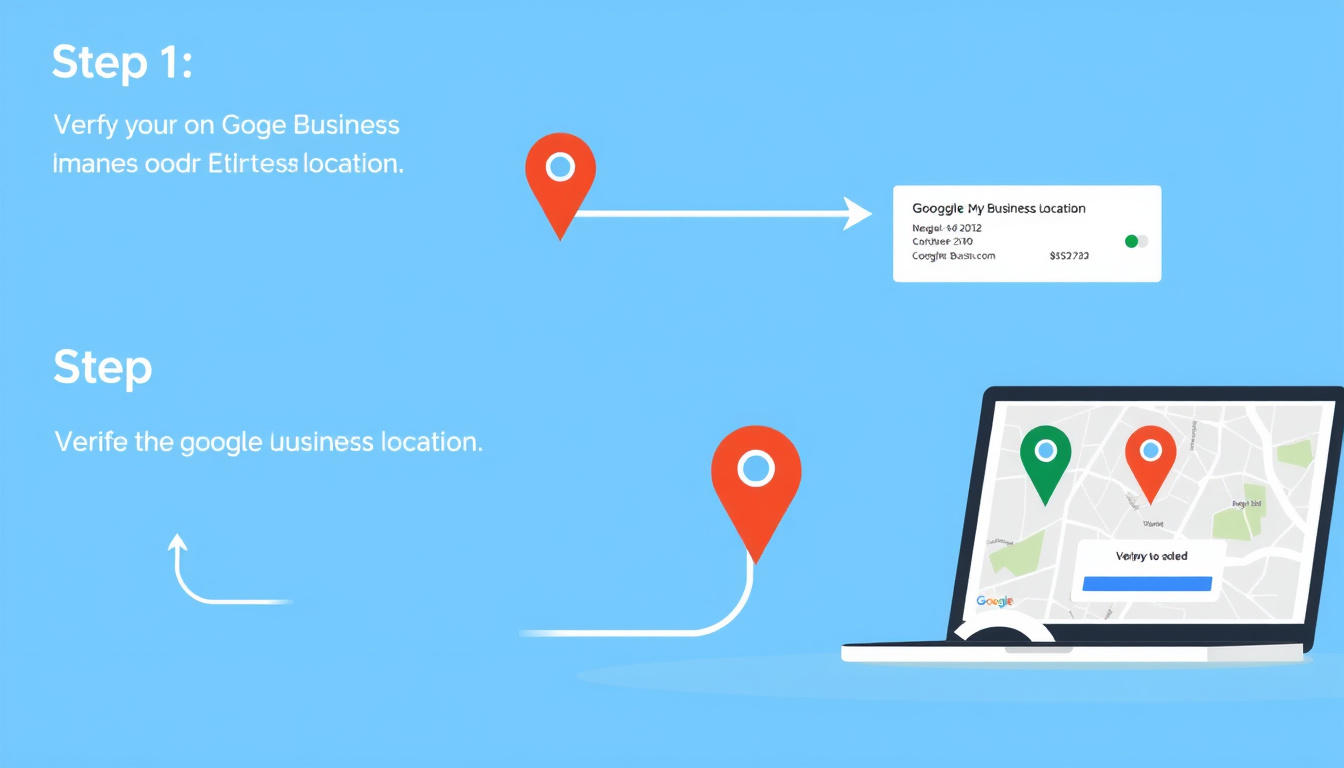
Verifying your business location is a crucial step in optimizing your Google My Business (GMB) profile, as it helps establish credibility and boosts visibility in local search results. So, how can a Google My Business location be verified? The verification process typically begins when you create or claim your business on GMB. Google offers several methods for verification, the most common being the postcard method, where Google sends a postcard with a unique verification code to your business address. Once you receive this postcard, you simply need to enter the code in your GMB account to complete the verification. Alternatively, businesses may also qualify for phone verification or email verification if they meet certain criteria. Completing the verification not only enhances your business’s presence online but also allows you to manage important information, respond to customer reviews, and gain insights through analytics. Ensuring your business is verified is essential for building trust with customers who search for your services online.
Common Issues and Solutions During Verification Process
When managing a business, ensuring that you have a verified Google My Business (GMB) location is crucial for enhancing your online visibility and attracting local customers. However, many users encounter common issues during the verification process that can delay or prevent their location from being verified. One frequent hurdle is receiving the verification postcard, which can take up to 14 days to arrive, or, worse, never arrives at all. If you find yourself asking, ‘how can a Google My Business location be verified?’ there are several steps you can take. First, while waiting for the postcard, ensure that your business address is correctly listed and aligns with your official business documentation. If the postcard fails to arrive, you may have the option to verify your location via phone or email, depending on your business category. Furthermore, if your GMB location remains unverified after multiple attempts, consider reaching out to Google support for assistance. By understanding and resolving these common issues, you can successfully complete your GMB verification and boost your business’s online presence.
Frequently Asked Questions
What is Google My Business and why is it important for my business?
Google My Business (GMB) is a free tool that helps businesses manage their online presence across Google, including Search and Maps. It is important because it allows potential customers to find your business easily, view your address, hours, and other essential information, and enhances your visibility in local searches.
How can I create my Google My Business profile?
To create your Google My Business profile, go to the Google My Business website, click on ‘Start Now,’ and enter your business’s name and address. Follow the prompts to fill in your business details, including categories, services, and images.
What are the steps to verify my Google My Business location?
To verify your location, sign in to your Google My Business account, select your business, and click on ‘Verify.’ You can choose from several verification methods, including by postcard, phone, email, or instant verification (if eligible). Follow the instructions based on your selected method.
What common issues might I encounter during the verification process?
Common issues during the verification process include not receiving the verification postcard, incorrect business information, or issues with your Google account. Make sure all your information is accurate and check if the postcard was sent to the correct address.
What should I do if I can’t verify my business location?
If you’re unable to verify your location, ensure your business information is correct and consistent across all platforms. You can also request a new verification postcard, try a different verification method, or seek assistance from Google’s support center for further help.
[color=rgb(34, 34, 34)]Zing Business Systems revolutionizes customer engagement with its innovative communication solution. Our service ensures no missed call goes unanswered by transforming them into SMS conversations, bridging the gap between businesses and their customers. With our cutting-edge technology, we turn potential lost business opportunities into fruitful interactions, providing a seamless, modern communication experience. This approach not only enhances customer service but also supports digital marketing efforts. Experience the power of optimized communication and never lose business to a missed call again with Zing Business Systems.[/color]


